Changing from Essential to Advanced Bills, and vice versa
Money 2006 and later support two views on the bills/deposits area, Essential and Advanced. The former,
Essential, is the default on a new file.
It is necessary for some people to swap these over as they provide
different functionality:
Essential Bills
Essential bills provide the following functionality:
- Schedule
all of your regular bills
- Keep track of when your payments are due
- Set up automatic payments for bills
you pay every month
- Assign categories to your bills to help you with budgeting
Advanced Bills
These provide additional functionality:
- Track your investment purchases
- Specify when a bill series will
end
- Keep track of paychecks and deposits
- Edit either a bill series of a single occurrence
Changing from one to the other
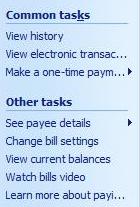
You can access the settings in one of two ways - either by selecting 'tools'->'settings'
on the toolbar and then pressing 'Bill settings', or alternatively, pressing the 'Change bill settings' option on the left hand
side of the window when in the bills area.
You will be presented with a popup window showing the current
state of the bills. On first run, this will indicate it is the Essential bills, as seen below.
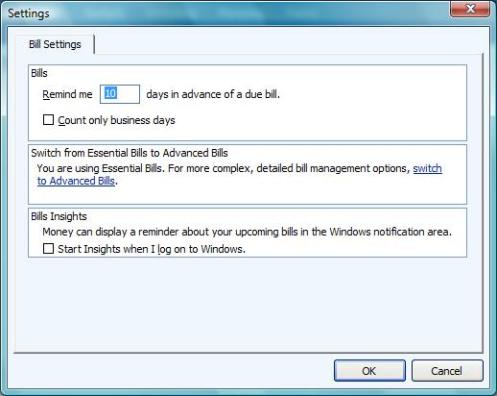
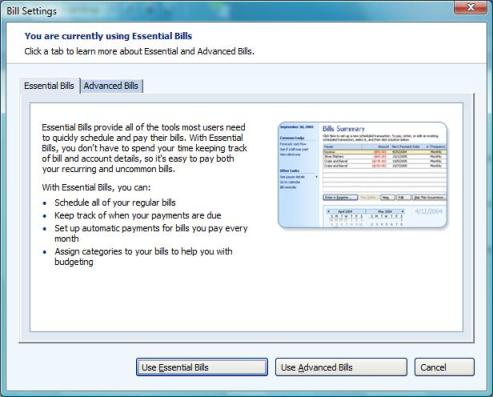
Click on the option to 'switch to advanced bills'. This will display a window showing you the
differences between the two types, as shown below. Note that at the top of the window, it tells you what you
are currently using.
The Advanced Tab looks like that below (note that this screenshot was taken when using advanced bills, so the
setting at the top of the window is different to the one above).
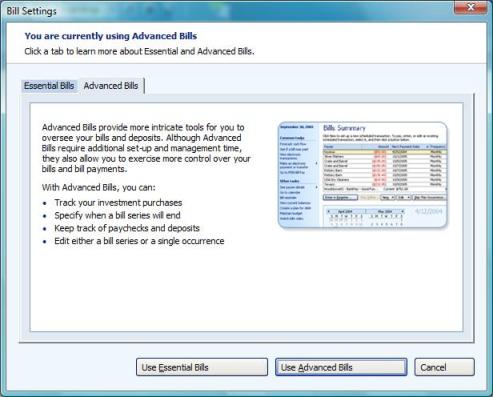
If you click on 'Use Advanced Bills', then the additional options are available to you and there is nothing more to do
except exit any remaining dialog boxes.
If you are using Advanced Bills and are changing back to Essential
bills, then you'll receive an additional popup window to warn you that you'll no longer be able to do the following:
- Add new paychecks, investment purchases, and other deposits
- Save draft payments to send later
- Print checks
- Edit individual bills within a series
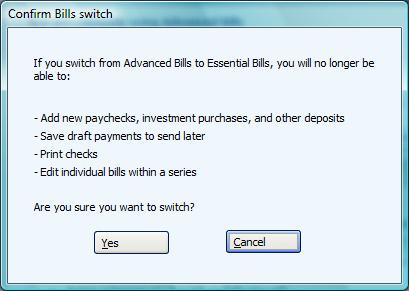
This will be accompanied by a Yes/Cancel option to confirm. After you have pressed
Yes, you'll be back at the Bills Settings page which you can then complete by pressing the OK button.
Keywords: Deposits, Bills, Essential, Advanced