A quick walkthrough of downloading an OFX statement and importing it
When you want to manually import an OFX (
Article 235)
statement from your bank, it may not be clear, until you have done it a few times, what happens during the process.
In the short article below, the steps that are involved are shown and explained.
Because each bank is
different, you will need to check on their website on how to manually download an OFX statement (note, this is for
manual downloads, not ones which may be downloaded through Yodlee or CashEdge, or Essential Accounts).
Once you press the button to select the statement, you should see some sort of warning that you are downloading a
file, as shown in the image below. In this image, I am downloading an OFX statement from the NatWest bank in the UK,
who happen to add their name to the file. It might just be called 'download.ofx' or 'report.ofx' or something else -
this is up to the discretion of the bank.
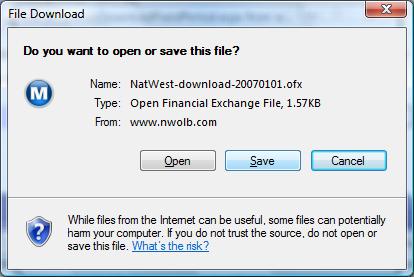
To import directly into Money, then you should choose the Open option. The Save option can be used if
you need to save the file for some reason (for example to import into a non-default Money file, a Money file on
another machine or to analyze the OFX file (
Article 366)).
If you press 'Open', but do not have Microsoft Money running, then you may see a message similar to
that which is below.
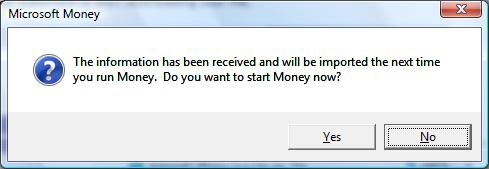
Selecting the Yes option will start up Money, but it is optional as to whether you do so.
When you next do start Money, either by pressing the 'Yes' button above, or manually running it later, the statement is
imported into Money. When Money has imported it, you'll see the 'Import Summary' window.
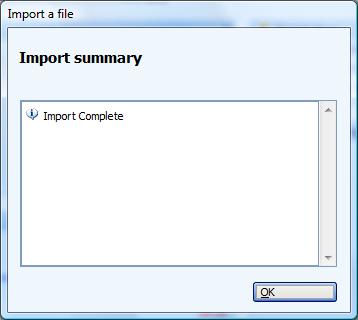
This window gives messages about any import errors, but usually you'd expect to see it saying 'import complete'. It has been reported to me (thanks Jack A)
that there could be a 500 transaction limit when importing (both OFX and QIF file format). If your file is particularly large, you may need to split it up
into separate downloads from the financial institution.
If you now press OK, you should see the statement summary page. In the example below, I have two statements
with downloaded transactions in them. Also listed are the number of transactions which need review.
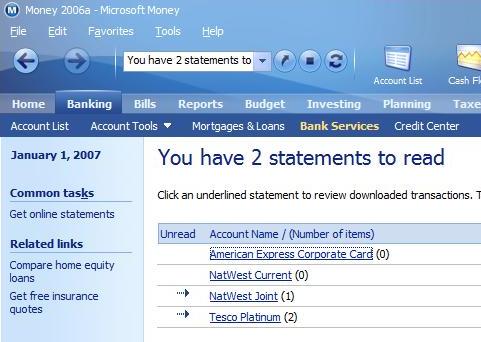
If I click on an account, I will see the
statement which includes the downloaded and imported transactions. Money at this point does some matching against existing
transactions. If you have a lot of transactions which have been imported, Money will show a message in the top right of
the window telling you that the account is being updated
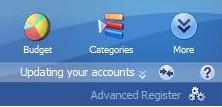
When the transaction match finishes, your statement is fully imported, and you can get on with
checking the matches or new transactions that the process has made.
Keywords: import, download, OFX